
Docs › Getting your site: the walkthrough
Getting your site: the walkthrough
From signup to a live site in about fifteen minutes — here's every screen you'll meet.
1. Sign up
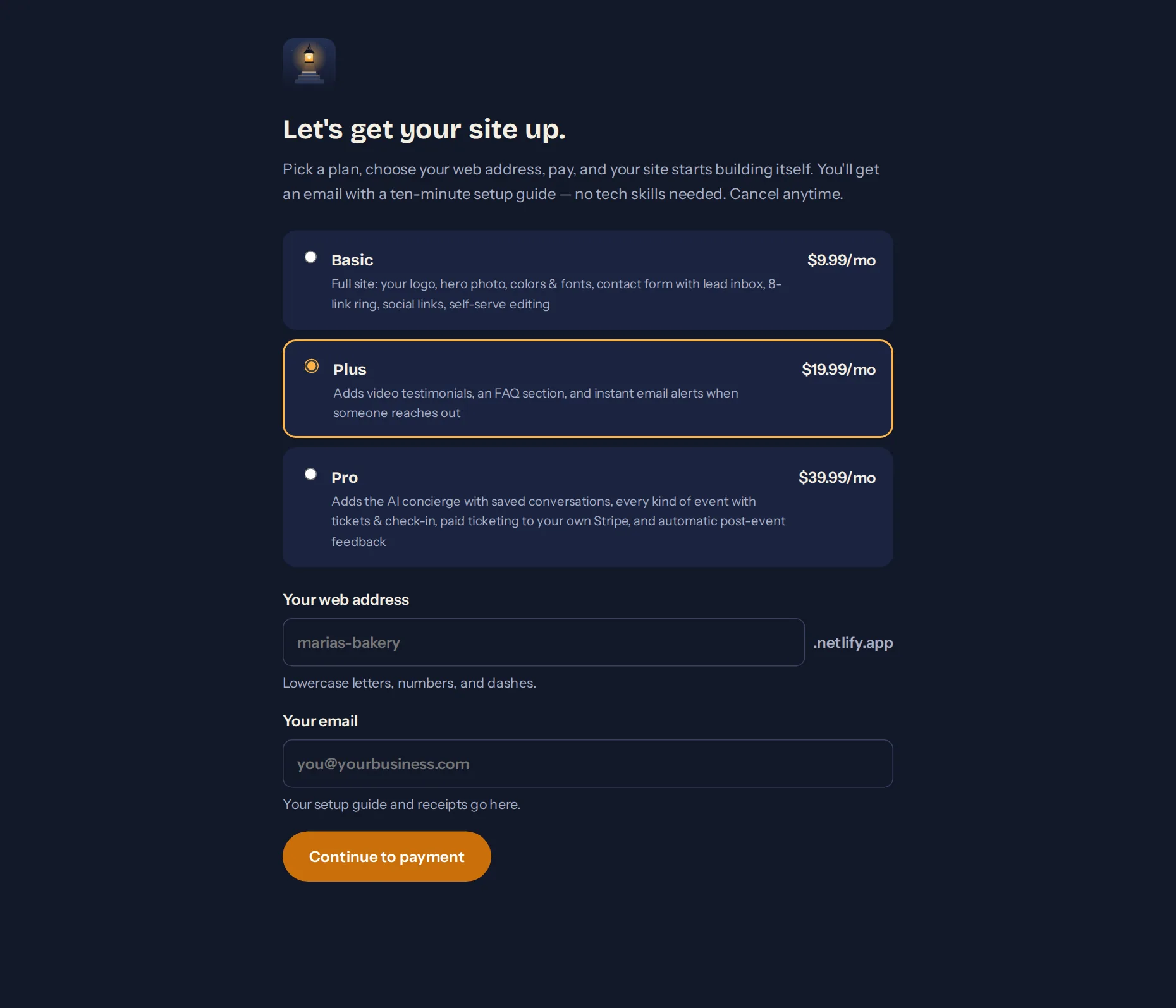
On the signup page, pick your plan, choose your web address (we check on the spot whether it's free), and enter your email. Payment is a normal card checkout handled by Stripe — you'll see the plan and monthly price before confirming, and you can cancel anytime.
2. Watch your inbox
Within a few minutes of paying, two things happen: your site starts building itself at your chosen address, and a welcome email arrives with your sign-in details — the address of your setup guide, the username admin, and a temporary password. That email also includes your subscription management link; keep it.
3. The setup guide
Open yoursite.netlify.app/admin/setup/ from the welcome email and sign in. The guide walks you through six short steps — you can skip any optional one and come back to it in the dashboard later.
Your login
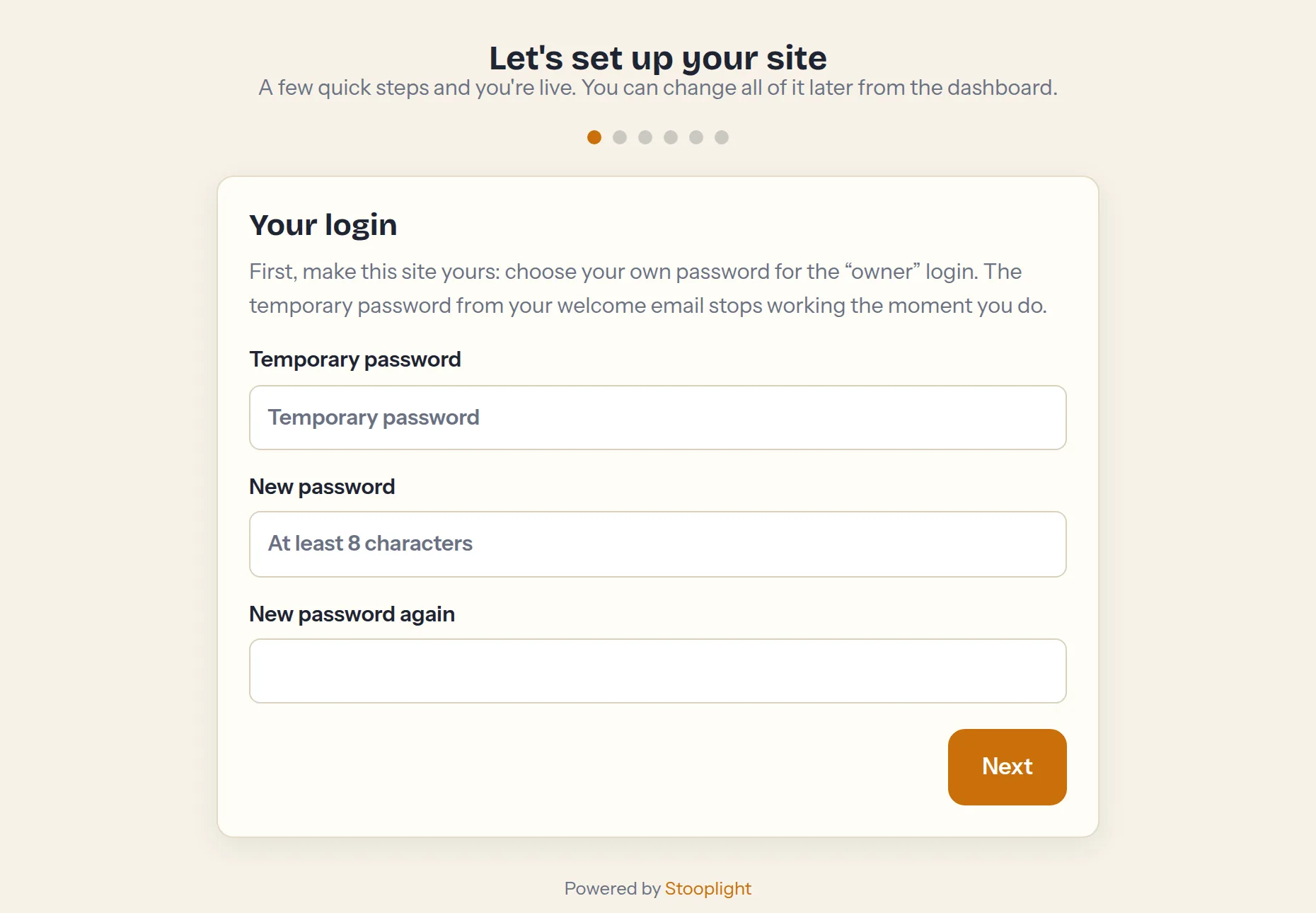
First, make the site yours: choose your own password. The temporary one from the email stops working the moment you do — nobody else, including us, has your new password.
The basics
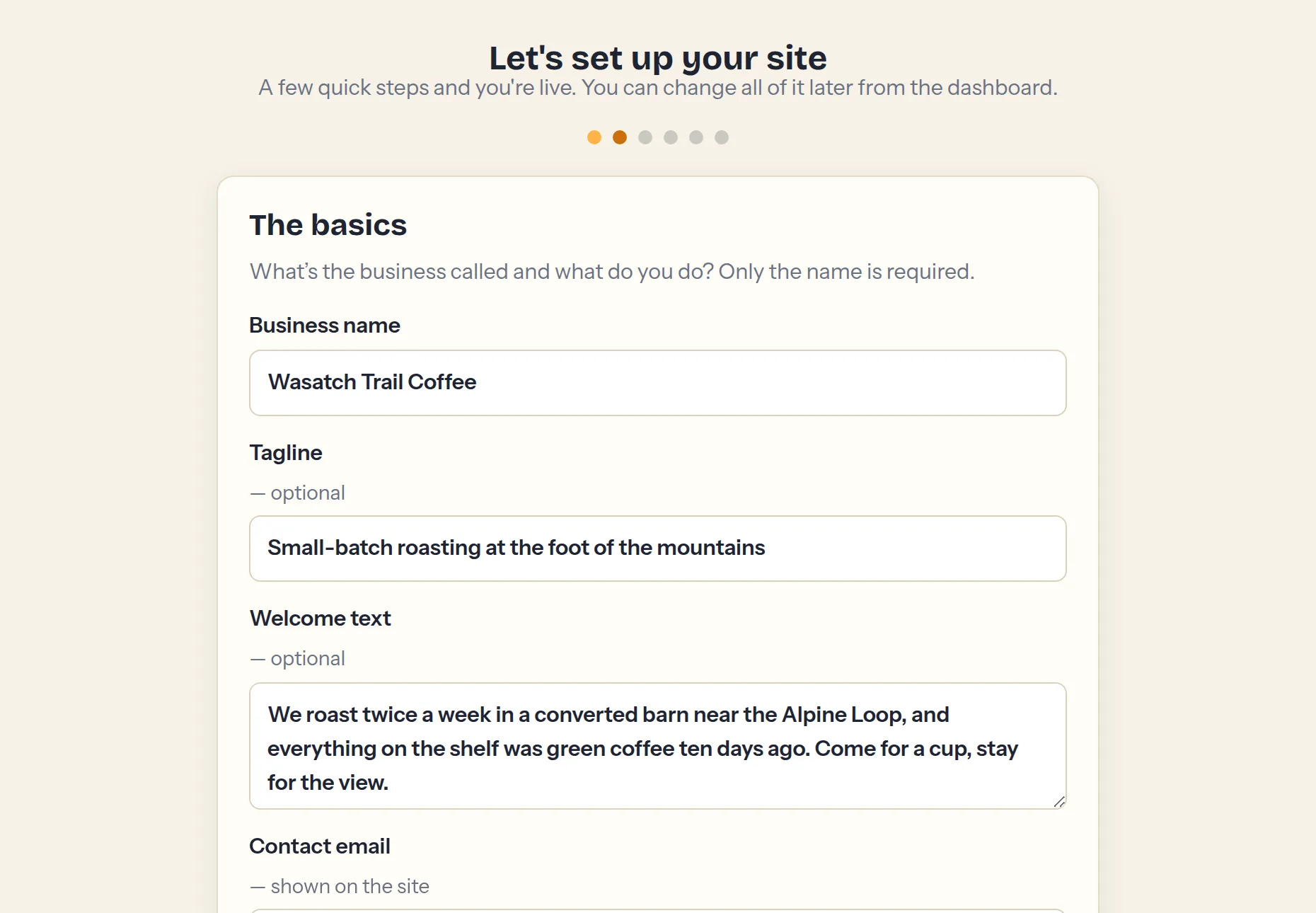
What's the business called, what do you do, how do people reach you. Only the name is required; everything else can be filled in later.
Your look
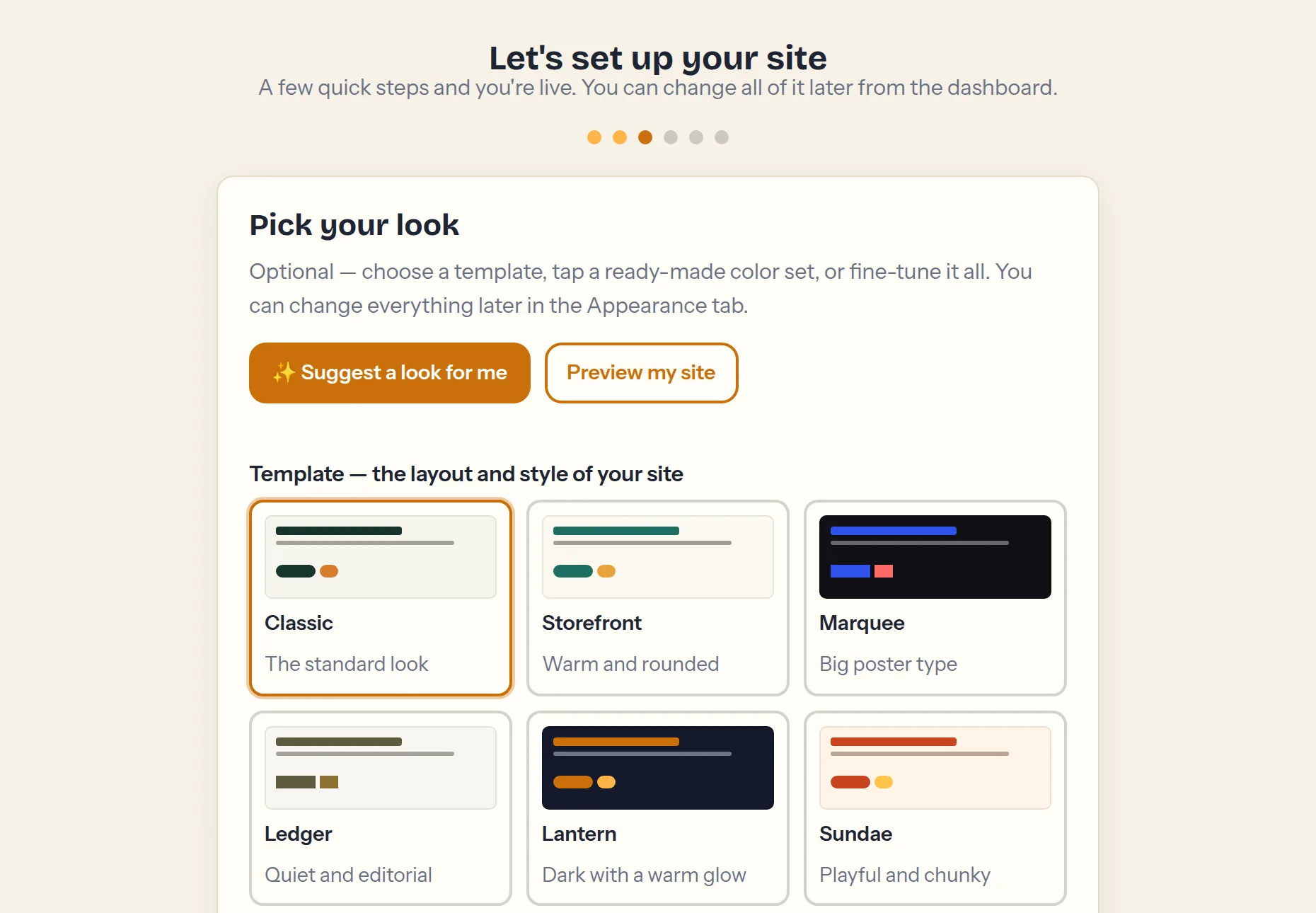
Choose one of twelve site templates, tap a ready-made color set, or pick your own colors and typefaces — picking a template suggests colors and fonts to match, and you can still change any of them before continuing. Not sure where to start? Tap Suggest a look for me and Stooplight matches a template, colors, and fonts to what you wrote about your business in the basics step. Preview my site opens your real page in a window and updates live as you change your mind. Skippable — the Appearance tab has the same controls later.
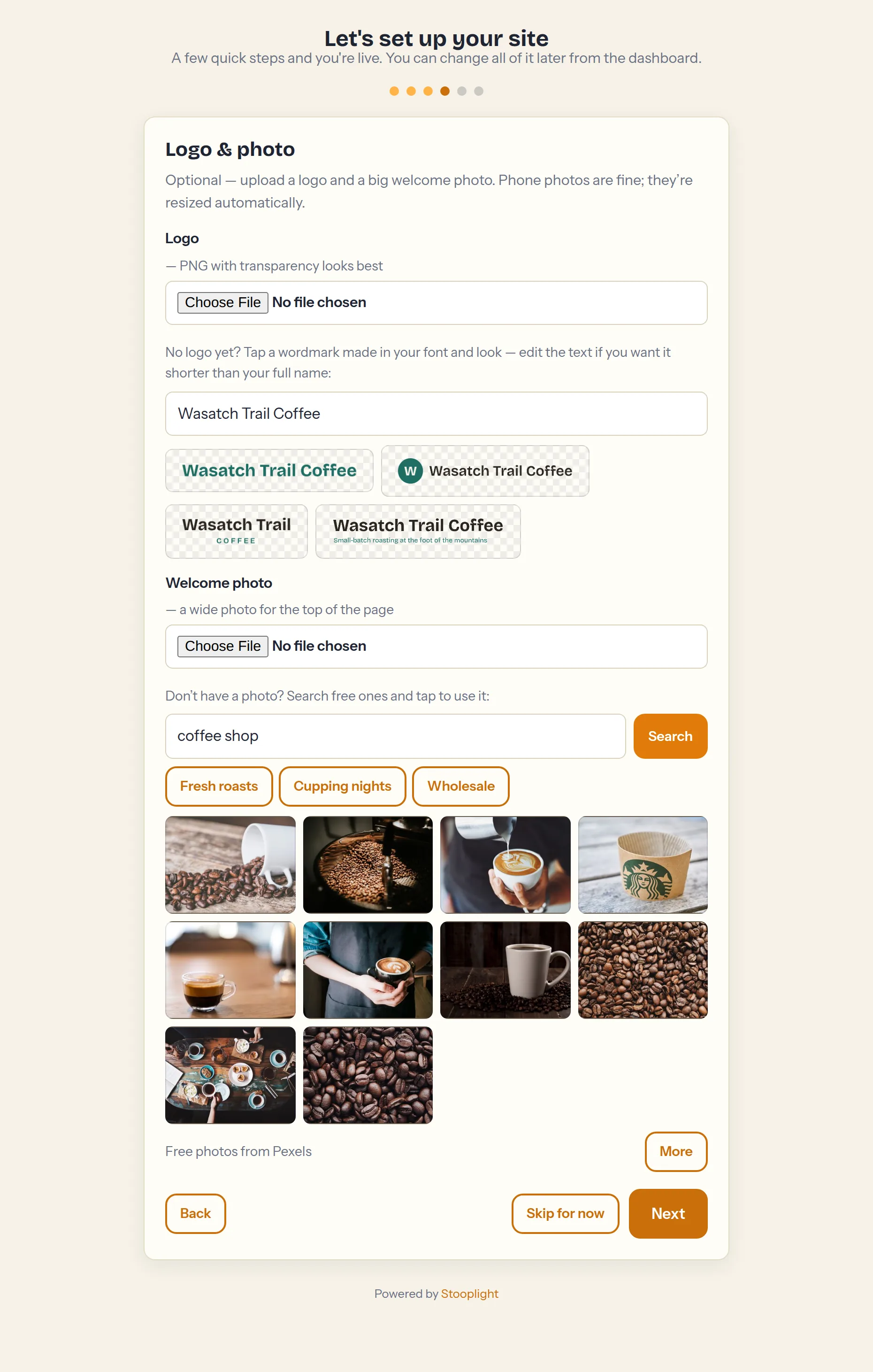
Logo & photo
Upload a logo and a big welcome photo if you have them handy — phone photos are fine, they're resized automatically. Nothing on your phone? Search free stock photos by keyword and tap one, or have Stooplight draw a wordmark logo from your business name — it comes after the look step on purpose, so the logo is drawn in the font and colors you just picked. Skippable.
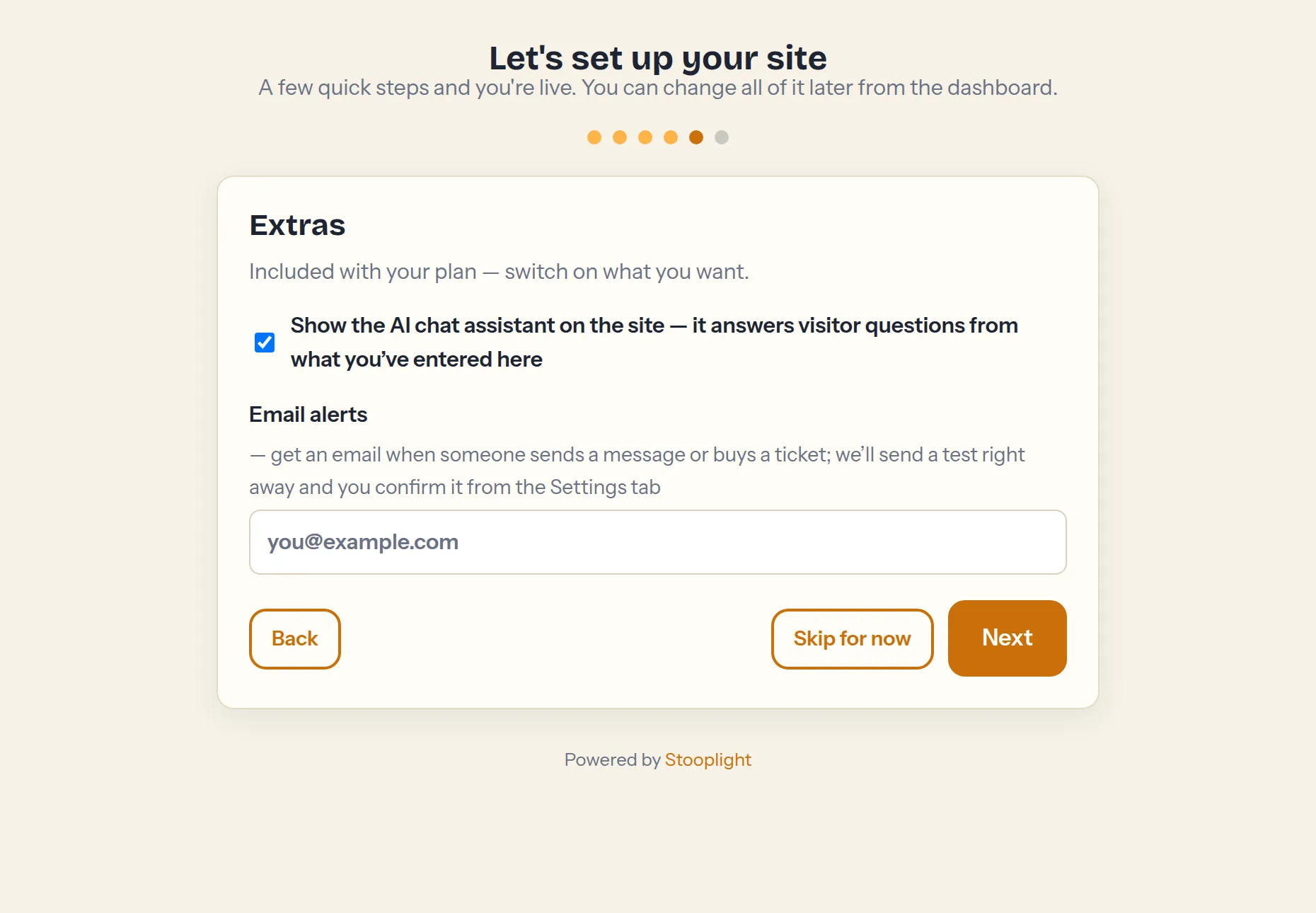
Extras
Depending on your plan, this step offers the AI chat assistant and email alerts. The guide only shows what your plan includes.
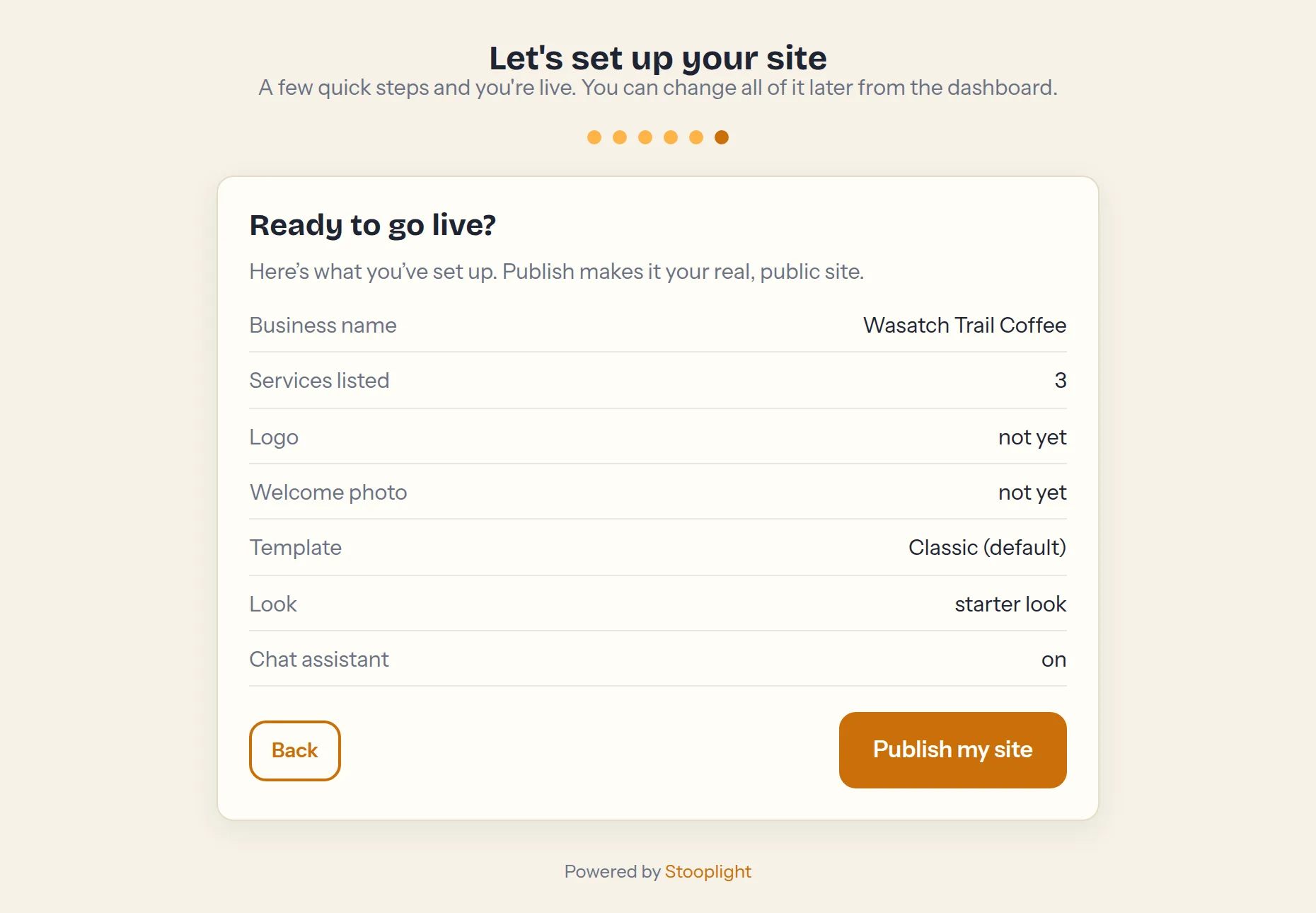
Go live
A summary of everything you set up, and one button. Press it and your real, public site replaces the placeholder.
Tip: Everything the guide sets up is editable afterwards from the dashboard — nothing is locked in.