
Docs › News posts
News posts: tell people what's new
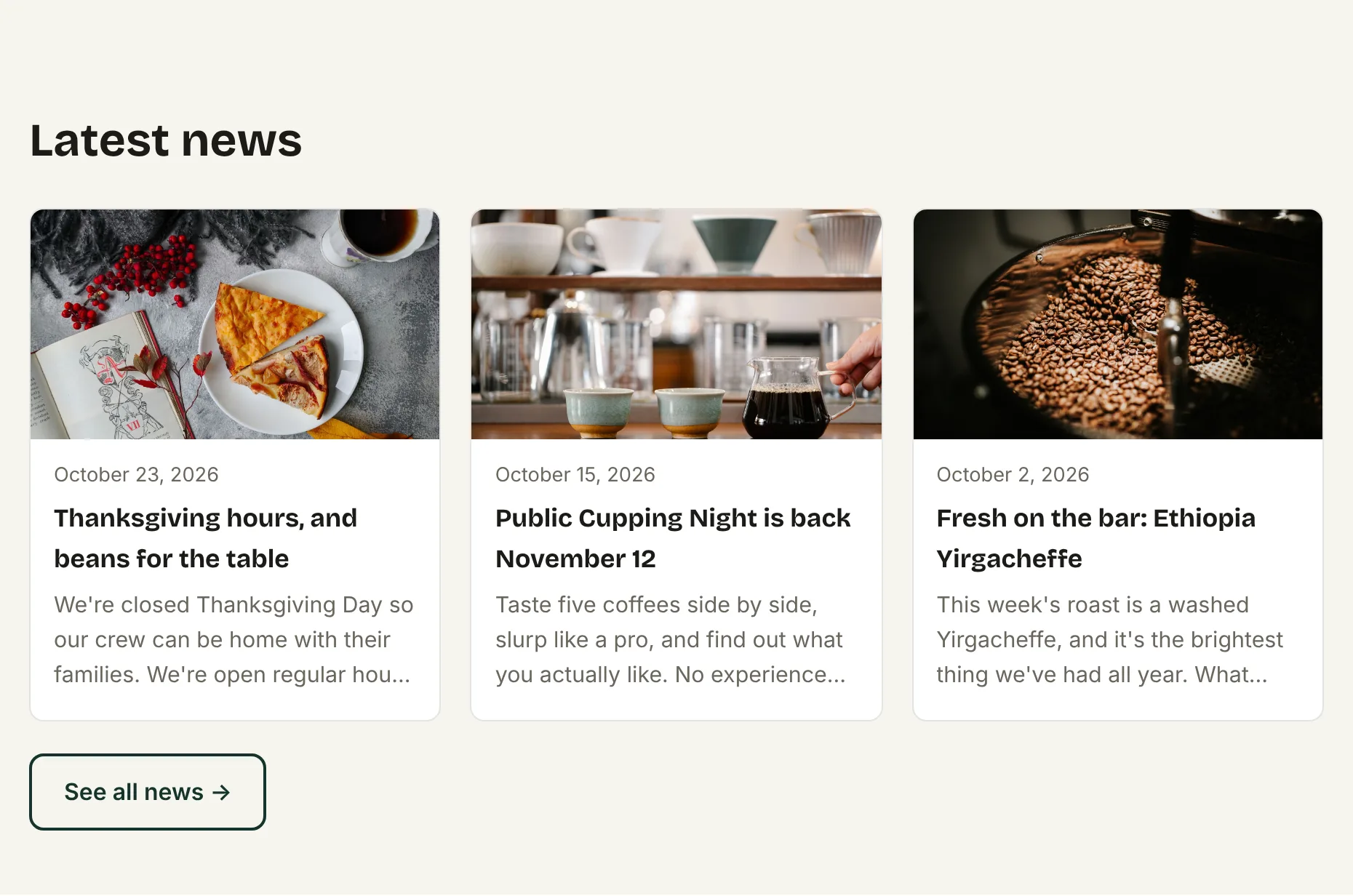
Pro and upHoliday hours, a new product, an event recap — write a post from your phone, add a photo, and publish. Every post gets its own page Google can find, and the newest three show up on your homepage by themselves.
Write your first post
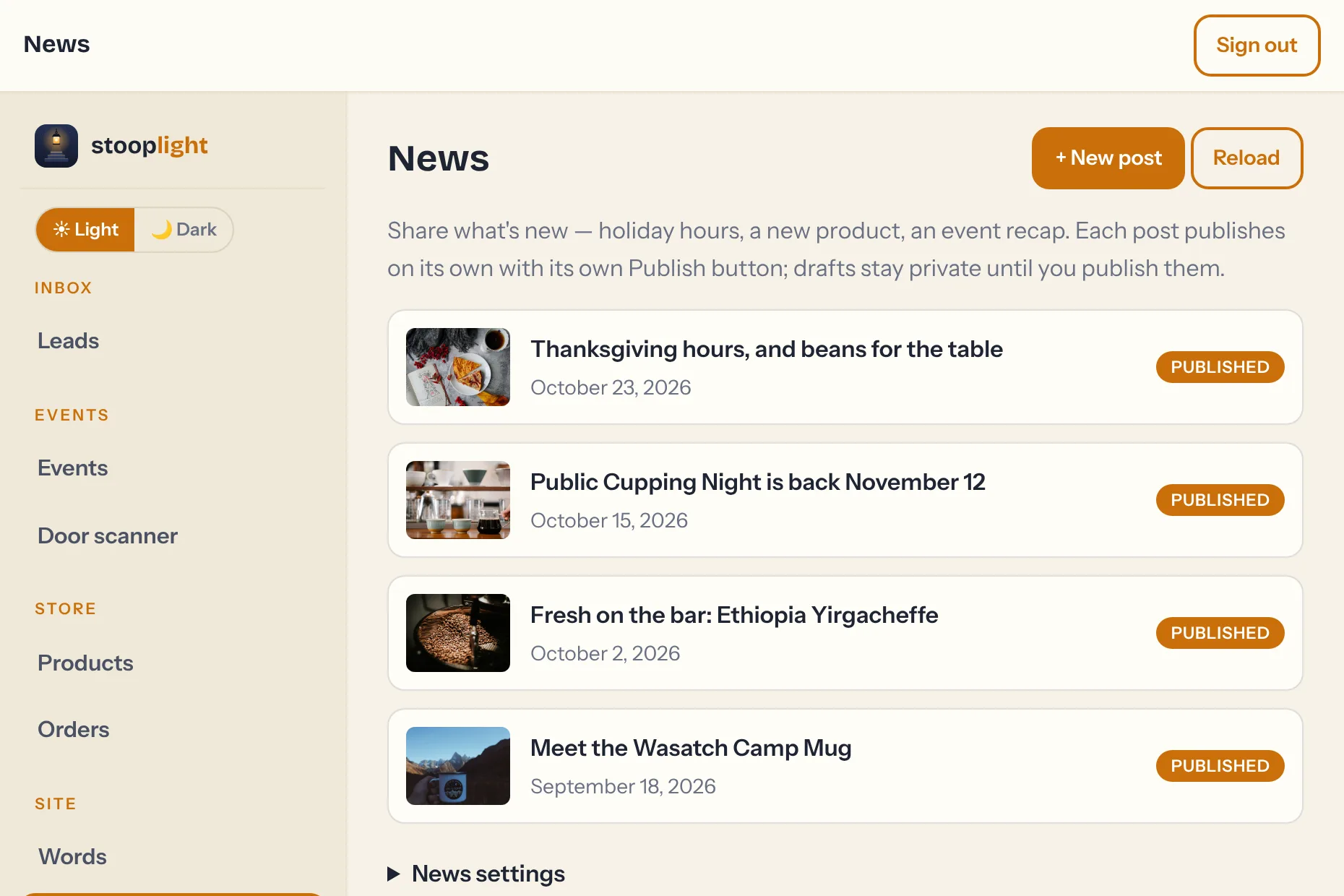
- In your dashboard, open News (under Site) and tap + New post.
- Give it a title. The date starts as today — change it if you're posting about something that already happened.
- Add a photo if you like: Upload one from your phone, or tap Find a free photo and search free stock photos. Photos are optional.
- Write the post. Leave a blank line between paragraphs.
- Tap Publish. That's it — the post is live.
Not ready yet? Save draft keeps it private. Drafts never show on your site, and you can come back to them any time.
Let it write the first draft
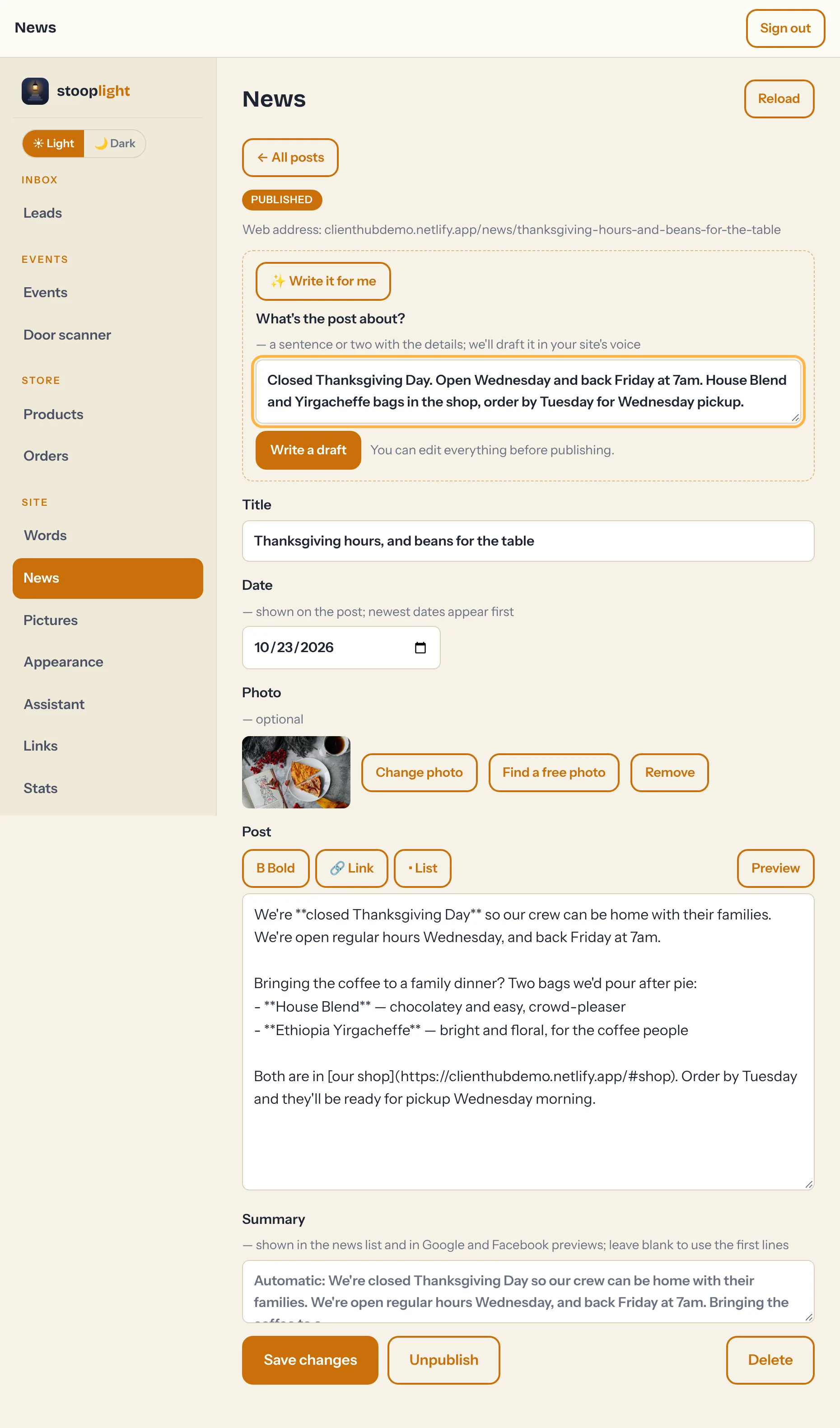
Tap ✨ Write it for me, type a sentence or two with the details — "Closed Thanksgiving Day. Open Wednesday and back Friday at 7am. Order bags by Tuesday for Wednesday pickup." — and tap Write a draft. A few seconds later you'll have a title and a post written in your site's voice.
- It only uses the facts you gave it and what's already on your site. It won't invent prices, dates, or offers — so if something's missing, add it yourself.
- It follows the tone and never-say rules from your Assistant tab, so it sounds like the rest of your site.
- Nothing publishes until you do. Read it over, change anything, then save or publish.
Bold, links, and lists
The buttons above the text box add simple formatting:
- Bold — select some words and tap it. They'll show between double asterisks in the box, like
**closed**, and bold on your site. - Link — select some words, tap it, and type the web address.
- List — turns the selected lines into a bulleted list.
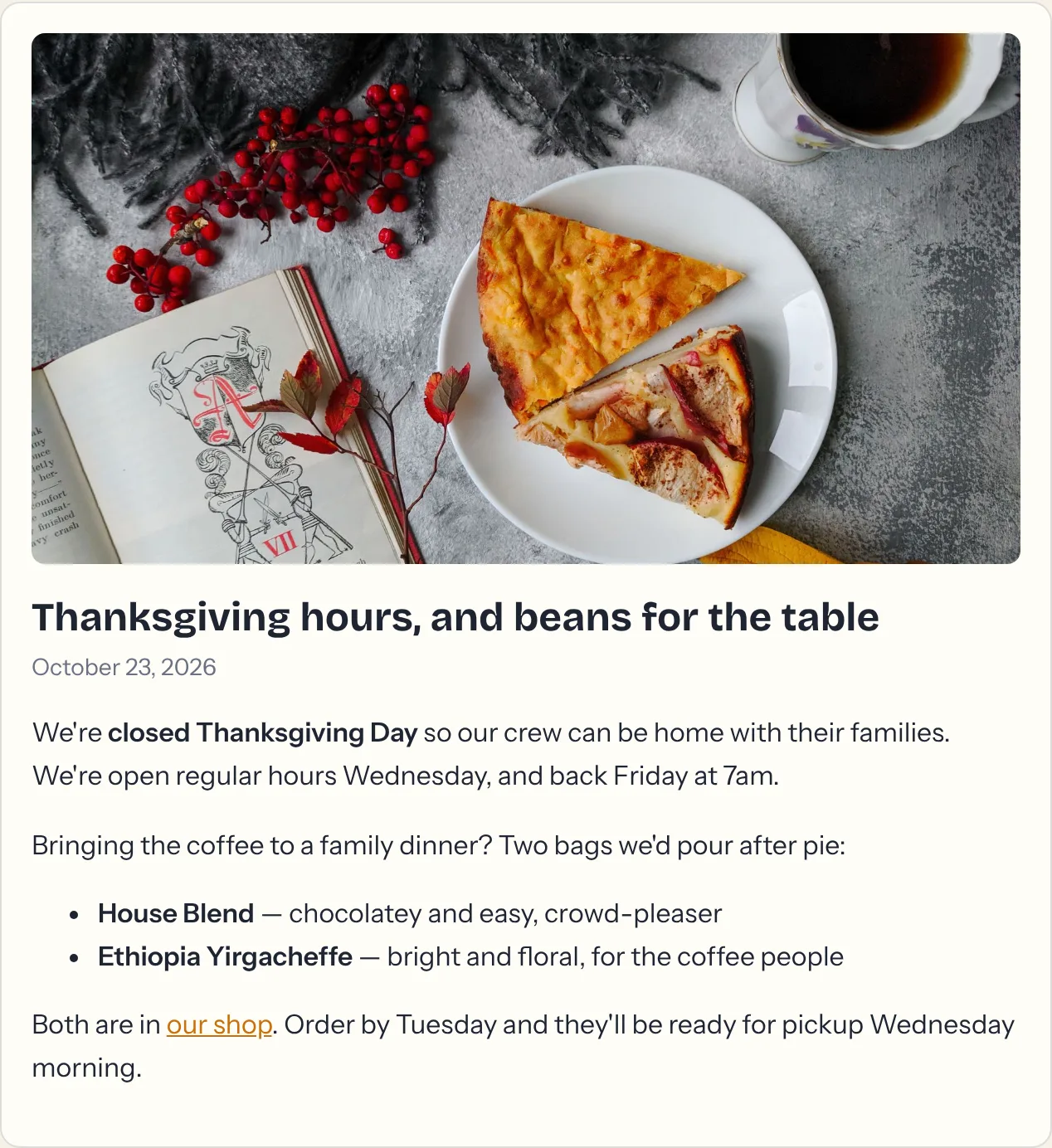
Fonts and colors always come from your site's look, so every post matches without any fiddling.
The summary
Each post has a short summary — the line or two shown in your news list and in Google and Facebook previews. Leave it blank and the first lines of your post are used automatically; write your own if you want something punchier.
Where posts show up
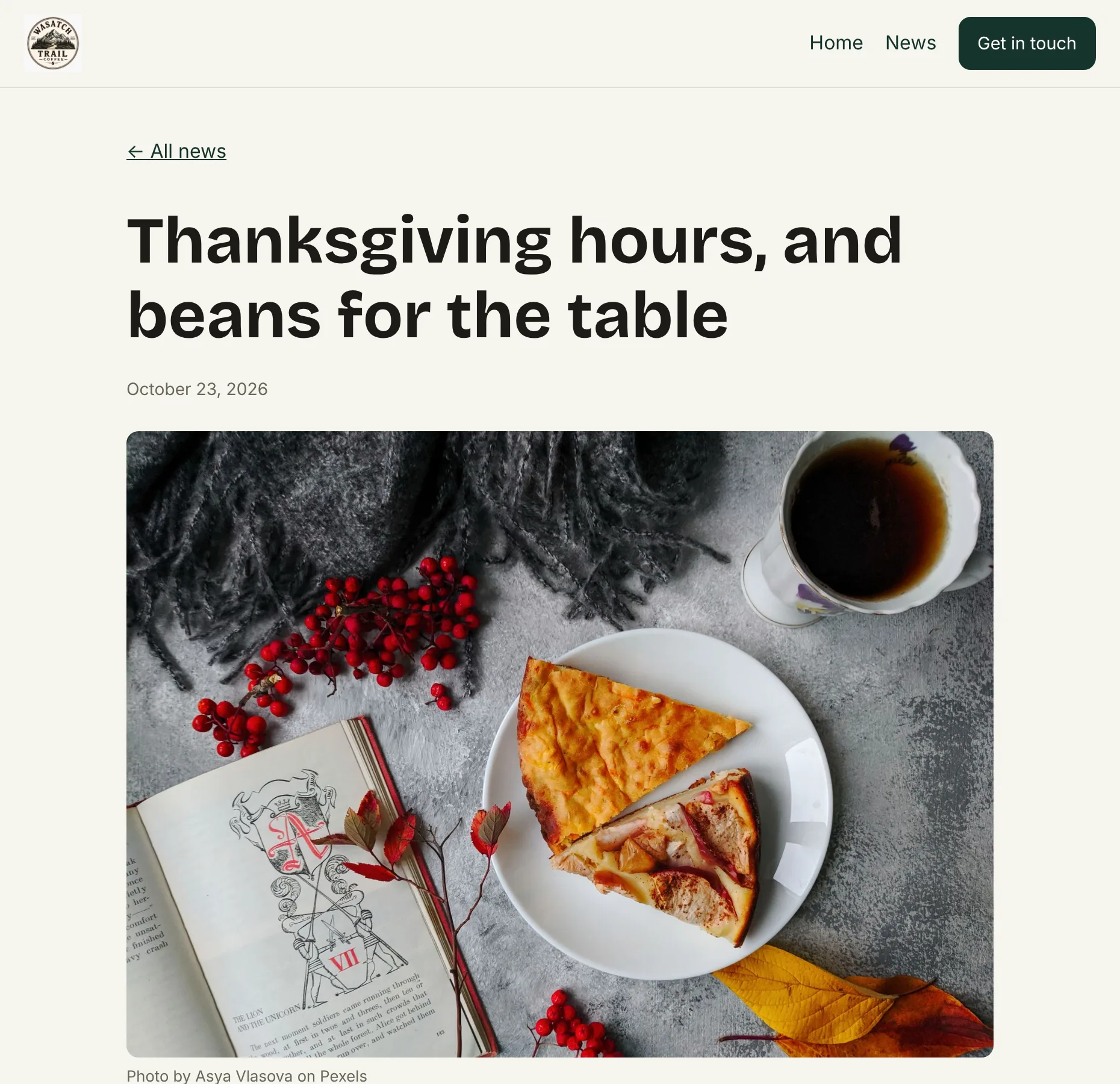
- Its own page at
yoursite.com/news/the-post-title, with a "Get in touch" (or "Book now") box at the bottom. Share that link anywhere — Facebook and text messages show the post's title, summary, and photo. - Your news page at
yoursite.com/newslists every post, newest first, 12 to a page. - Your homepage shows the newest three, plus a News link in the menu. Both stay hidden until your first post is published.
- Google — new posts are added to your sitemap automatically, so search engines find them.
- Your AI concierge reads your recent posts too. Post "closed Thanksgiving" and a visitor asking "are you open Thursday?" gets the right answer, with a link to the post.
- News readers — your posts also have a feed at
yoursite.com/news/feed.xmlfor people who follow sites that way.
Editing, unpublishing, and deleting
- Edit a live post — open it, change anything, and tap Save changes. The update is live right away.
- Unpublish takes a post off your site and turns it back into a draft. Publish it again later and it keeps the same web address.
- Delete removes a post for good. If you might want it back, unpublish instead.
- A post's web address is set from its title the first time you publish, and never changes after that — even if you edit the title — so links you've shared keep working.
News settings
Under News settings at the bottom of the News tab, you can rename the menu link — "Updates," "From the kitchen," whatever fits. Leave it blank to keep "News."
Want to see it working? The Wasatch Trail Coffee demo has a few posts up — and try asking its chat assistant whether they're open on Thanksgiving.