
Docs › Pictures: your logo and welcome photo
Pictures: your logo and welcome photo
All plansUpload a logo and a hero photo — phone photos welcome. No files handy? Search free stock photos and make a logo right here.
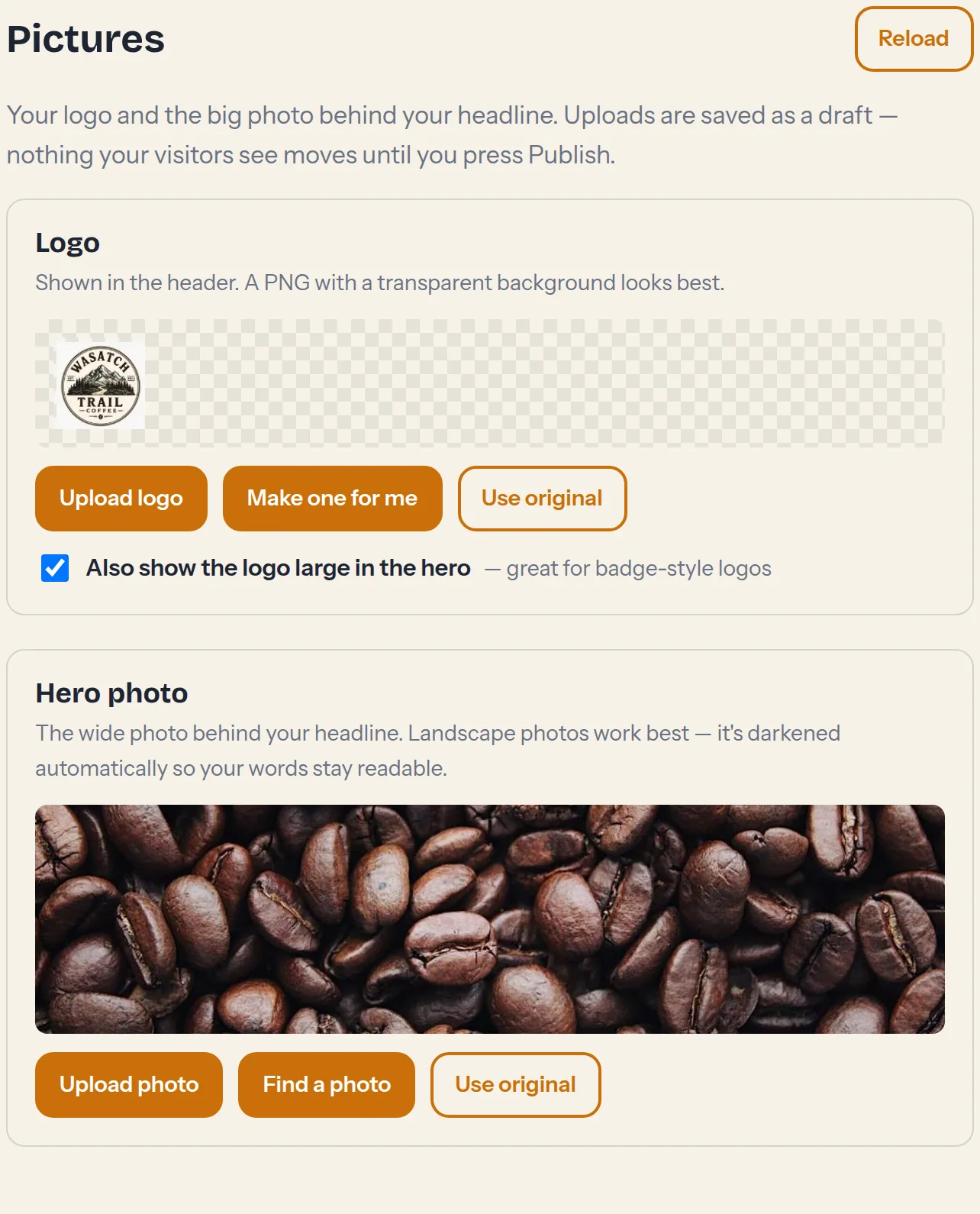
- Open Pictures and choose a logo file — PNG with a transparent background looks best.
- Choose a welcome photo: a wide photo for the top of the page. Big files are fine; they're resized in your browser before upload.
- Toggle whether the logo also appears large in the welcome area.
- Save, preview, publish — same as everything else.
No photo? Find one
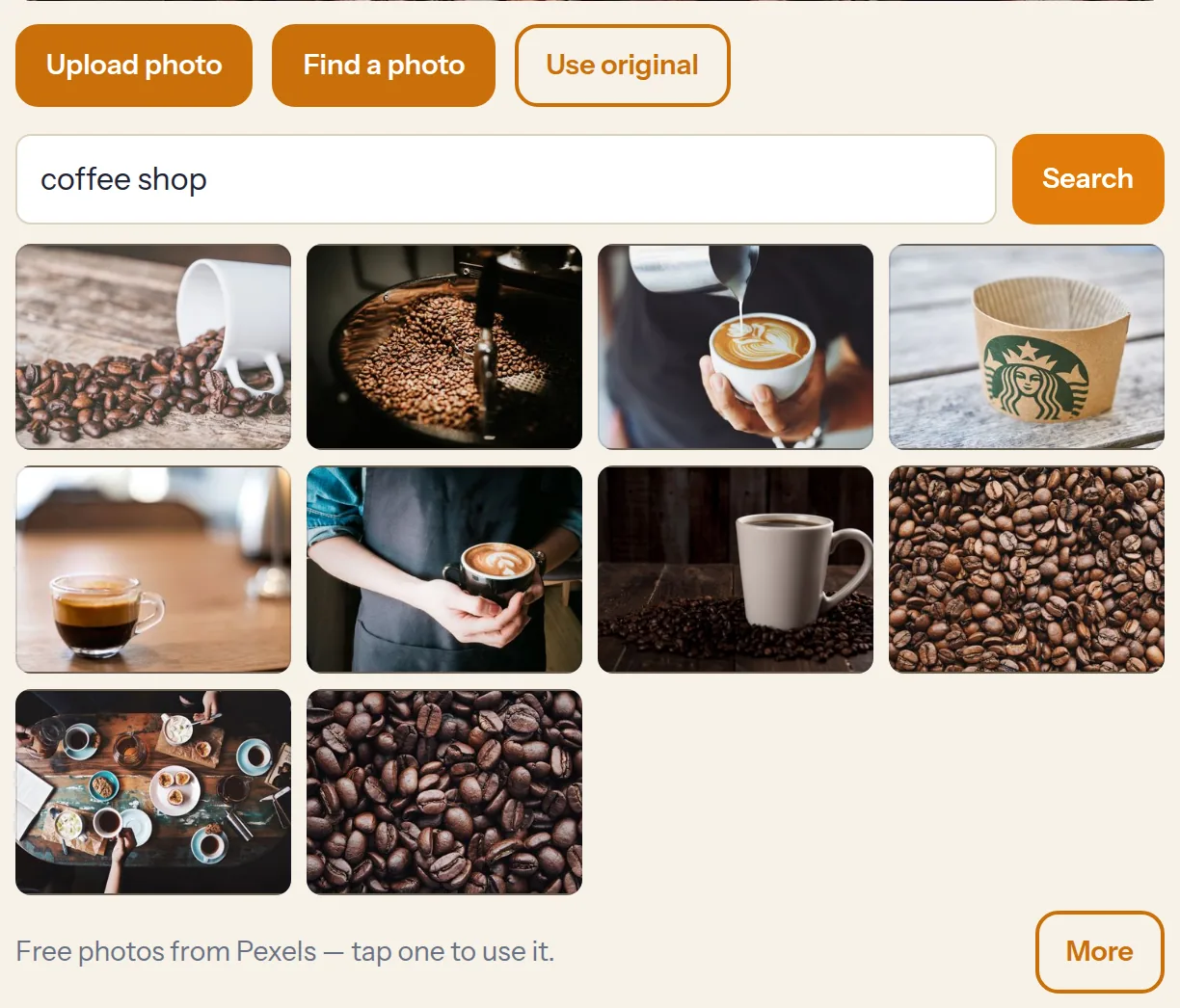
Tap Find a photo on the welcome photo card, type a word or two — coffee shop, mountain sunrise, tire shop garage — and tap the photo you like. That's it: the photo is saved into your draft like an upload, and you preview and publish the same way. The photos come from Pexels' free library, so there's nothing to pay and nothing to credit.
No logo? Make one
Tap Make one for me on the logo card and Stooplight draws a set of wordmarks from your business name in your site's own font and colors — a colored name, an initial badge, a stacked version, and one with your tagline. Tap the one you like and it's saved as your logo. Want the logo to say something shorter than your full business name? Edit the text box above the choices and they redraw as you type — your site's name isn't changed, just the logo.
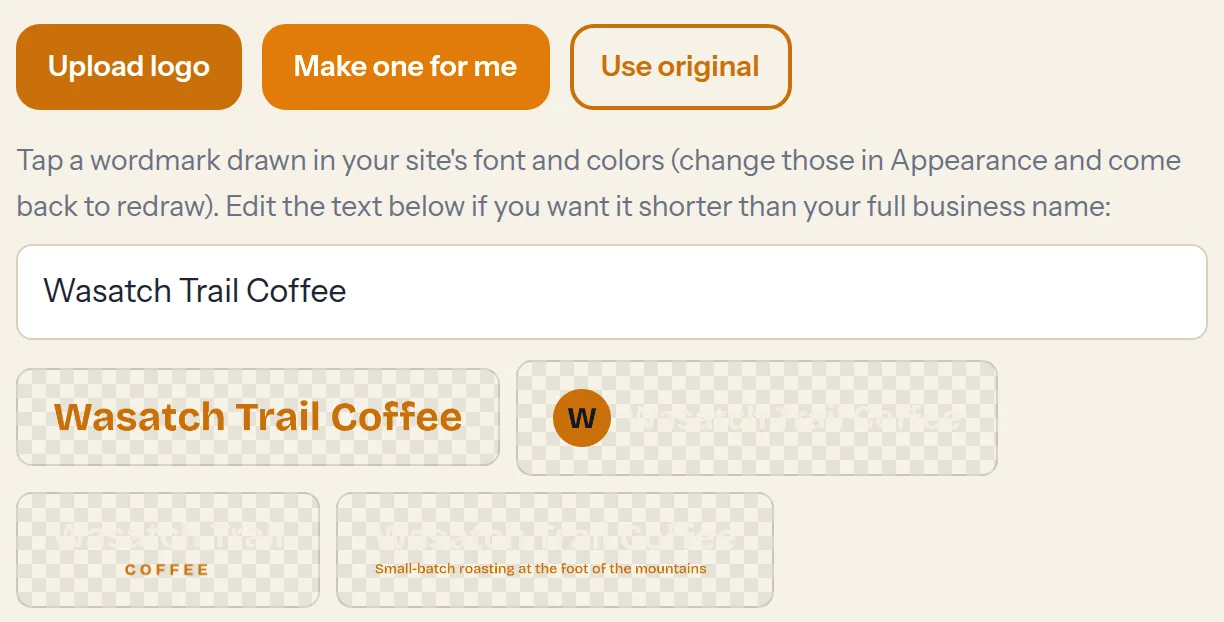
The wordmarks use whatever font and colors you've picked in Appearance — change your look and come back to redraw a matching logo.
Tip: “Use original” puts back the starter image if you ever want a clean slate.