
Docs › Words: everything your site says
Words: everything your site says
All plansBusiness name, services, FAQ, contact details, the map, and your social links — all in one tab.
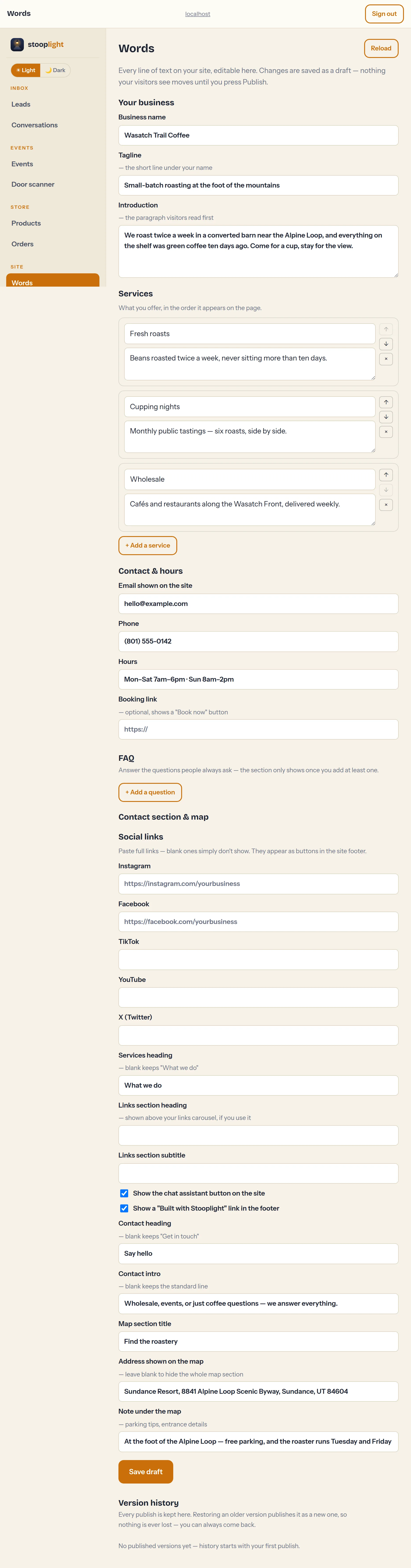
Your business & services
- Open Words in the dashboard.
- Edit the name, tagline, and introduction — this is the first thing visitors read.
- Under Services, add a card for each thing you offer: a name plus one or two lines. Reorder with the arrows.
- Press Save draft, then Preview to see it, then Publish.
FAQ (all plans)
Answer the questions people always ask — hours edge cases, parking, policies. Each entry is a question plus your answer; the section appears on your site once at least one is published, as tap-to-expand rows.
Contact details & the map
Email, phone, and hours show in the contact section. Enter your address under Map and a map section appears with directions; clear the address to hide it.
Online booking
Stooplight doesn't run its own appointment calendar — it plugs into the one you already use. Paste your scheduling page's address into Booking link and publish. Your site then puts a Book now button front and center in the hero, swaps the header button to "Book now," adds a "Ready to book?" line in the contact section, and teaches your concierge to hand out the link whenever someone asks to book, schedule, or make an appointment.
Don't have a scheduler yet? These four are free to start and take about ten minutes to set up:
- Cal.com — open-source and generous on the free plan: unlimited event types, workflows, and a clean booking page. Our pick if you're starting fresh.
- Calendly — the simplest. One event type on the free plan, connects to Google, Outlook, or iCloud calendars.
- Square Appointments — best if you take payments or deposits at booking, or already use Square. Free for a single location.
- Google Calendar appointment schedules — if you live in Google Calendar already, this is built in: open Calendar, create an appointment schedule, copy its booking page link.
Whichever you pick, copy the public booking page link (not your login page) and paste it in. Clear the field to go back to the plain "Get in touch" button.
Social links
Paste your full profile links (Instagram, Facebook, TikTok, YouTube, X) and they appear as icon buttons in the footer. Blank ones simply don't show.