
Docs › Appointment booking
Appointment booking
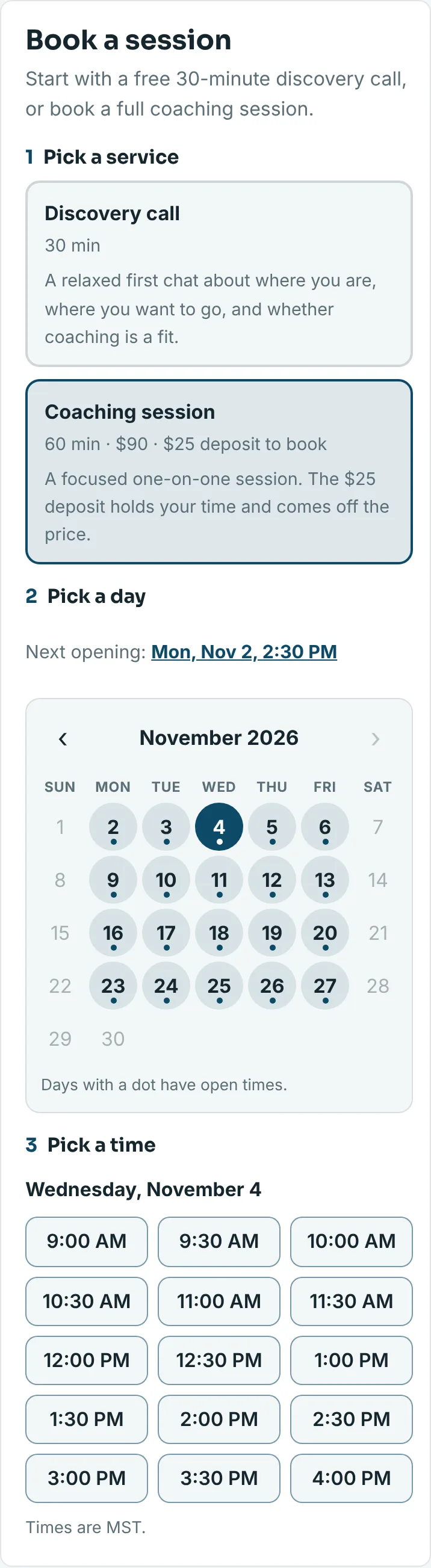
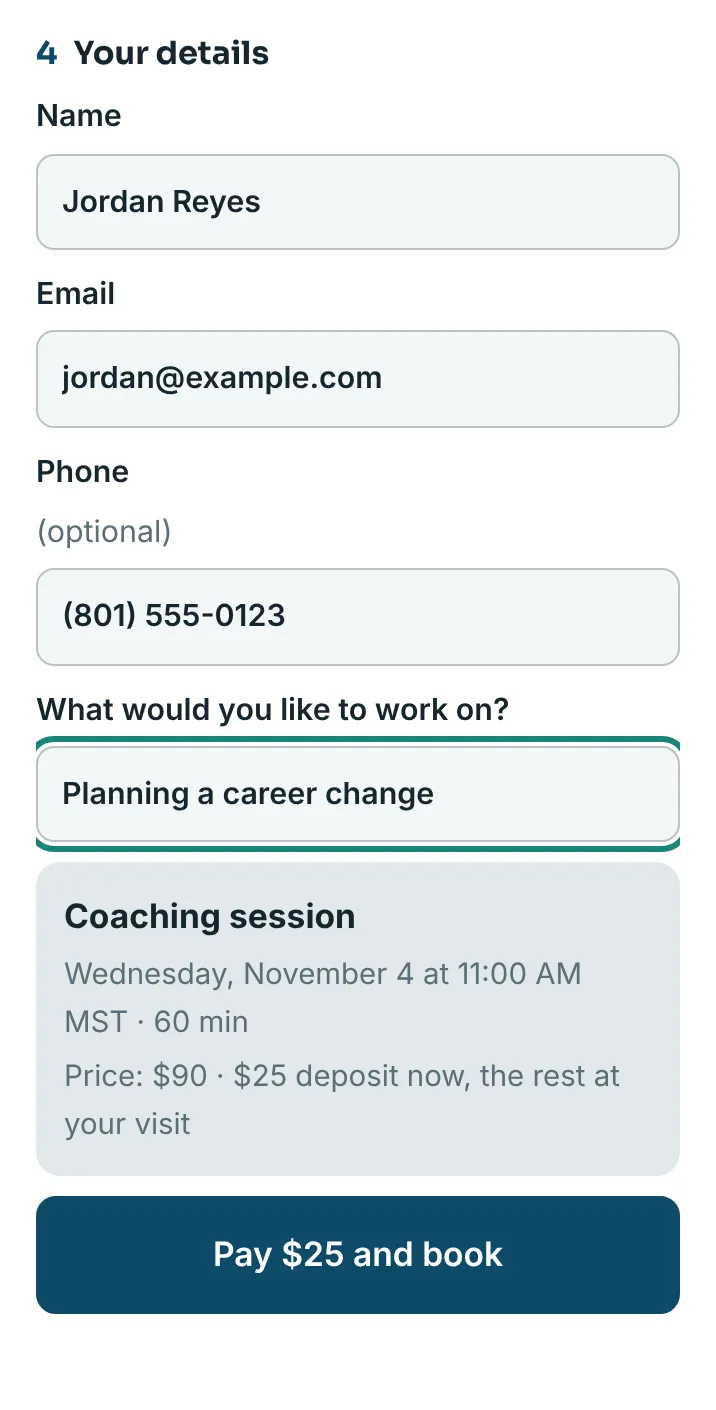
Pro and upYour site gets its own booking page. You list what people can book and set your hours once. Customers pick an open day on a calendar and a time that fits, and they're booked on the spot. Stooplight sends the confirmations and reminders, takes deposits through your own Stripe, and keeps your Google Calendar in step.
Set it up
Everything lives in your dashboard under Bookings. Open Booking setup:
- Under How people book, leave Stooplight booking picked. (Prefer to keep Cal.com or Calendly? See Using your own scheduler below.)
- Give your booking page a heading and a line under it if you like, and check your time zone.
- Tap + Add a service for each thing people can book. More on services below.
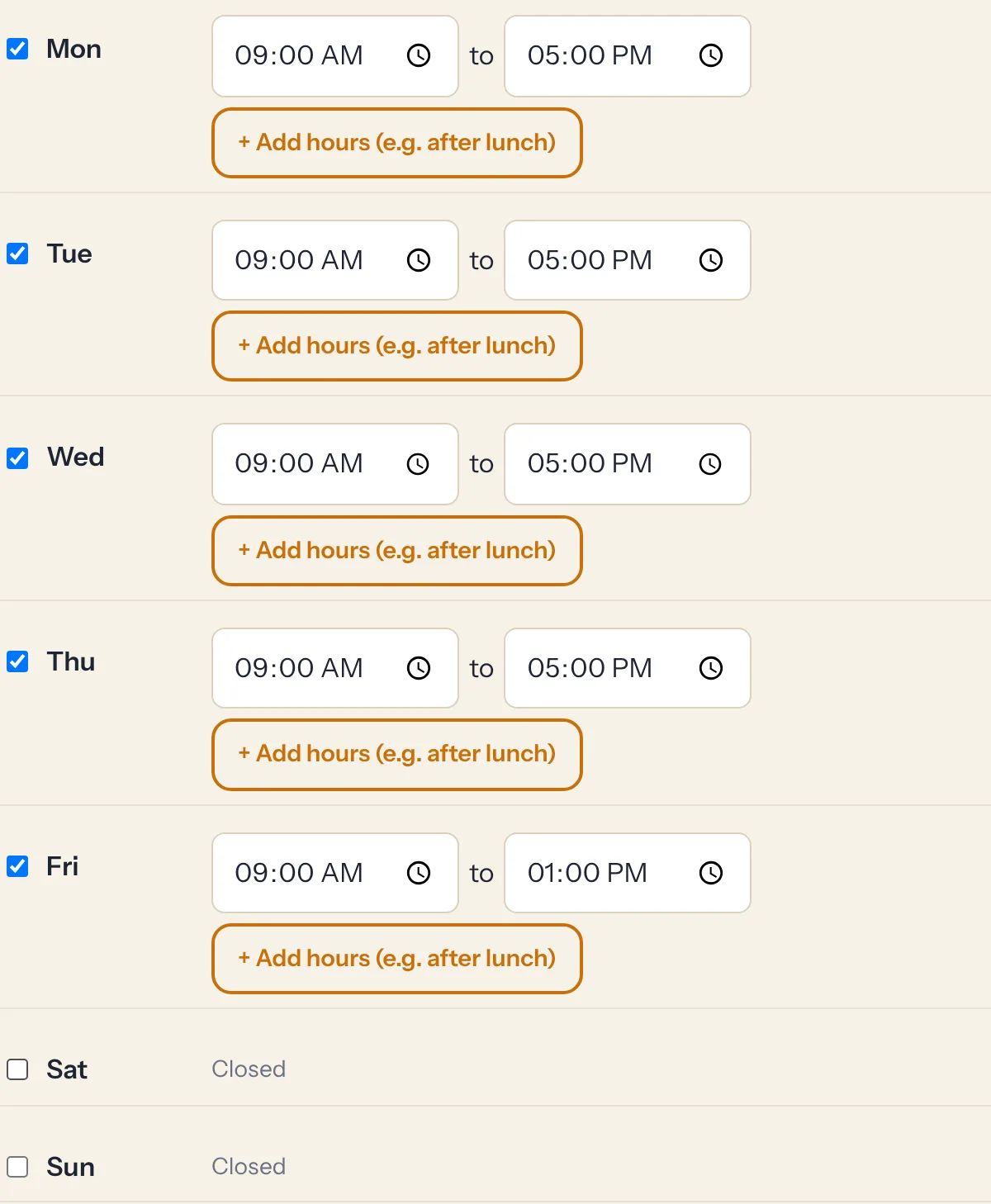
- Set Your hours: tick the days you're open and set the times. Use + Add hours for a split day, like 9 to 12 and 1 to 5.
- Check the House rules. The defaults suit most businesses.
- Tap Save, then Publish. Your Book now buttons now open your booking page, at
yoursite.com/book.
Services
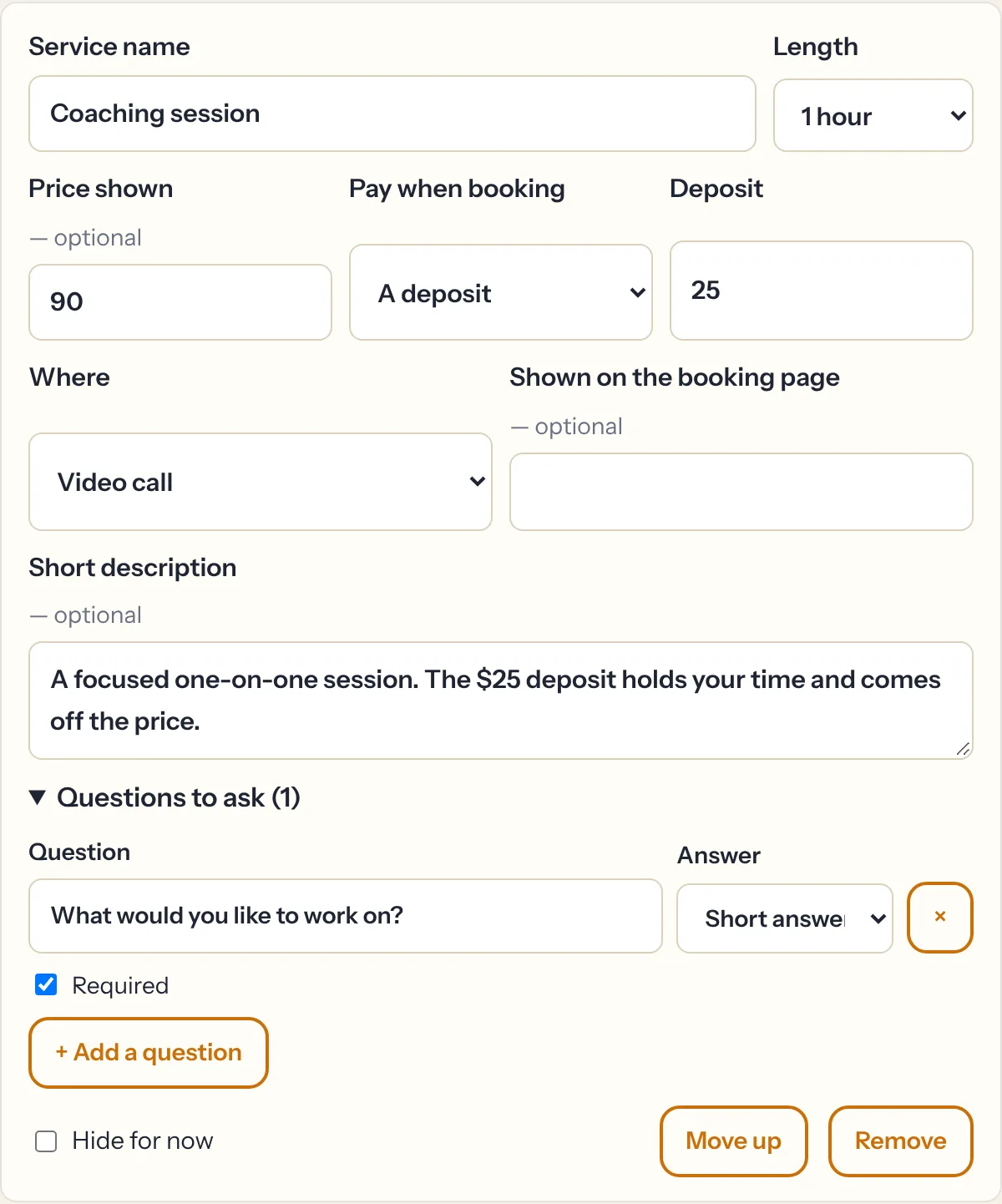
- Length sets how long the appointment blocks your calendar.
- Price shown is optional and just tells people what it costs.
- Pay when booking: nothing, a deposit, or the full price. Payments need Stripe connected (see Deposits).
- Where: at your place of business, at the customer's place, a phone call, or a video call. The note under it shows on the booking page, like your address or the area you cover.
- Questions to ask: the same builder as event RSVPs, with short answers, pick-one lists and checkboxes. Answers show on the booking and in your export.
- Hide for now takes a service off your booking page without deleting it.
Hours and house rules
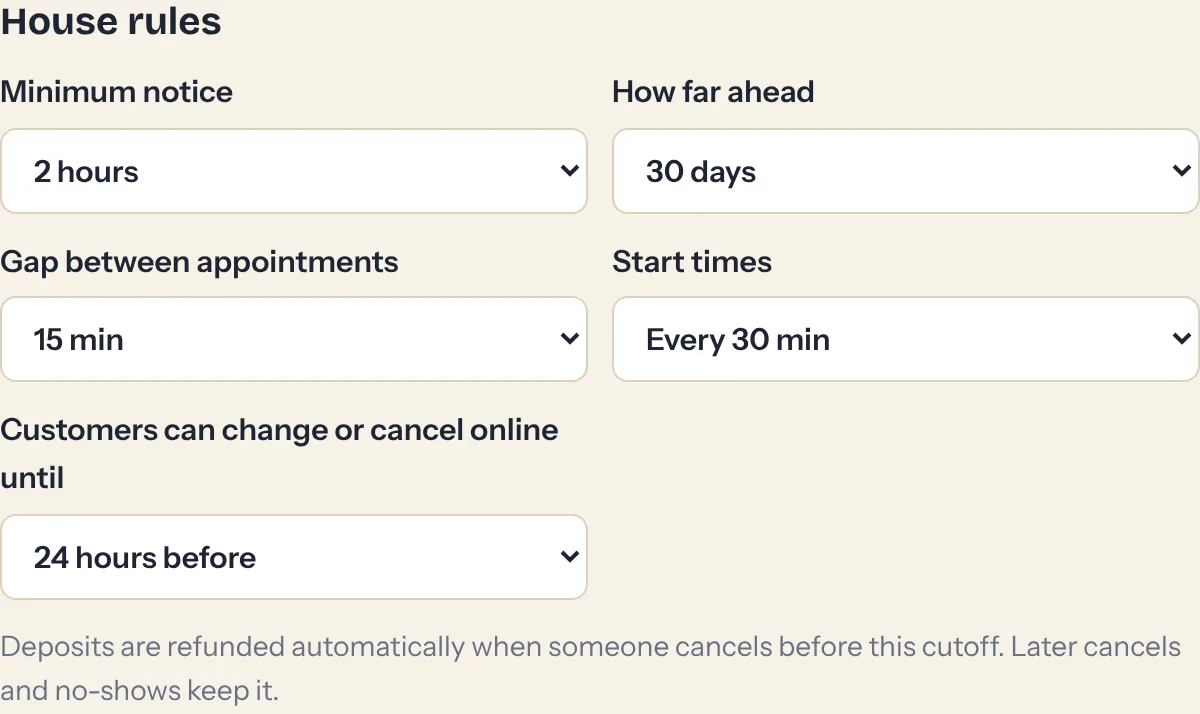
- Minimum notice stops surprise bookings for ten minutes from now. Default: 2 hours.
- How far ahead people can book. Up to 30 days.
- Gap between appointments gives you time to clean up, write notes or drive.
- Start times: every 15 or 30 minutes, or on the hour.
- Change or cancel cutoff: how close to the start customers can still change things online. Default: 24 hours. After that, the page asks them to call you.
What your customers get
- Booked on the spot. Two people can't take the same time: whoever confirms first gets it, and the other sees the next openings.
- A confirmation email with the time, where to go or how to join, and a calendar file for their phone.
- A reminder the day before.
- Change or cancel themselves with the link in their email, up to your cutoff. Moving picks from the same calendar.
- Their own time zone shown under each time when they're somewhere else, so nobody turns up an hour off.
Your AI concierge knows your services and your next open times, and hands out the booking link when someone asks. It doesn't book inside the chat.
Deposits and paying up front
A service can take a deposit or its full price when someone books, paid on Stripe's secure checkout straight into your own account. First connect Stripe under Settings → Getting paid (see Settings). The Appointments tab warns you if a service takes payment but Stripe isn't connected.
- While someone is on the payment page, their time is held for 30 minutes. If they don't pay, it opens up again by itself.
- Cancel before your cutoff: the deposit goes back to their card automatically.
- Cancel after the cutoff, or a no-show: you keep it.
- You cancel: they're refunded in full, unless you choose to keep it (say, for a late cancel they asked you to make).
Your appointments
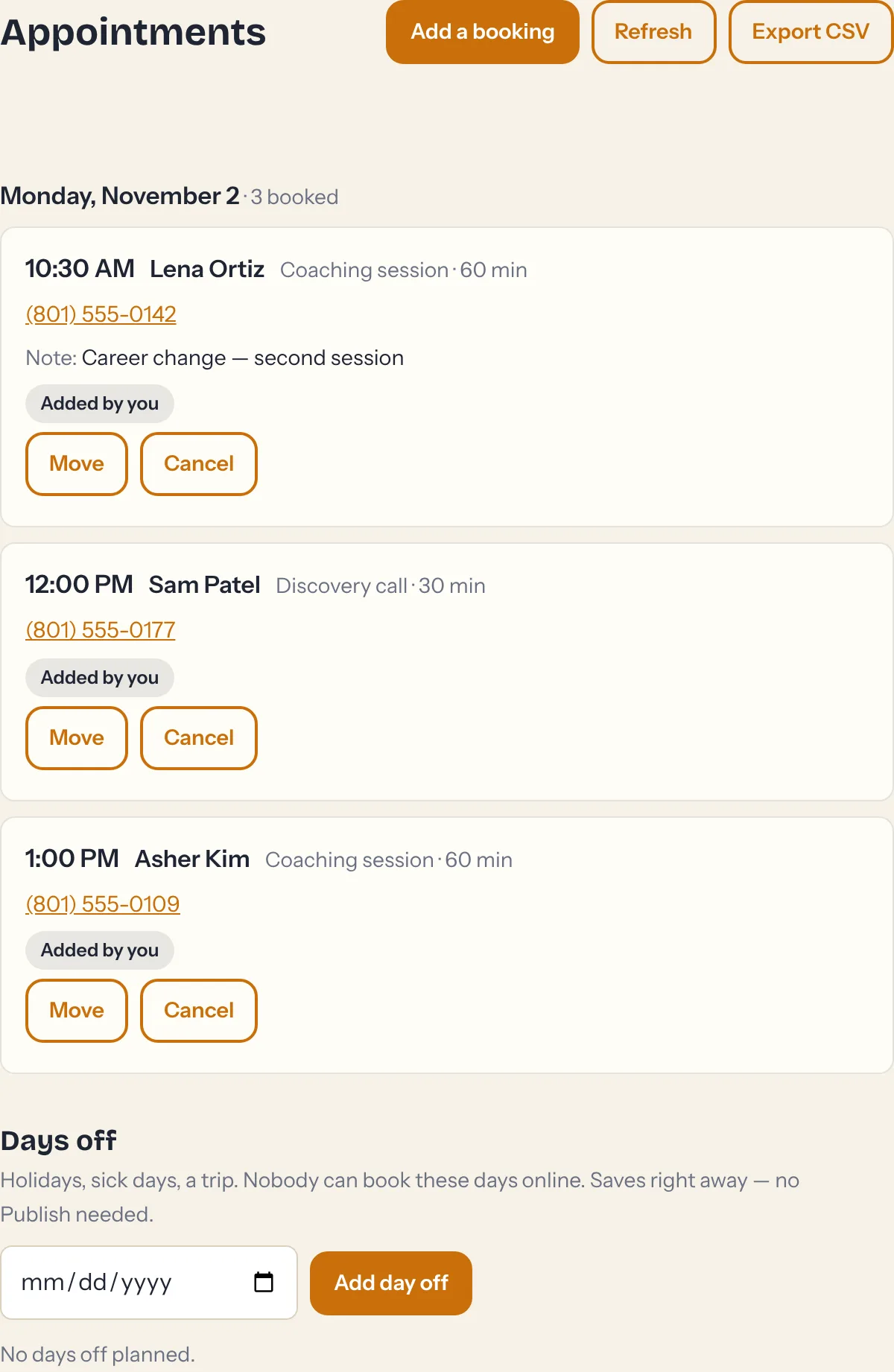
- Add a booking for phone-ins and walk-ins. Pick a service and a time; an email is optional. If you add one, they get the same confirmation and reminder.
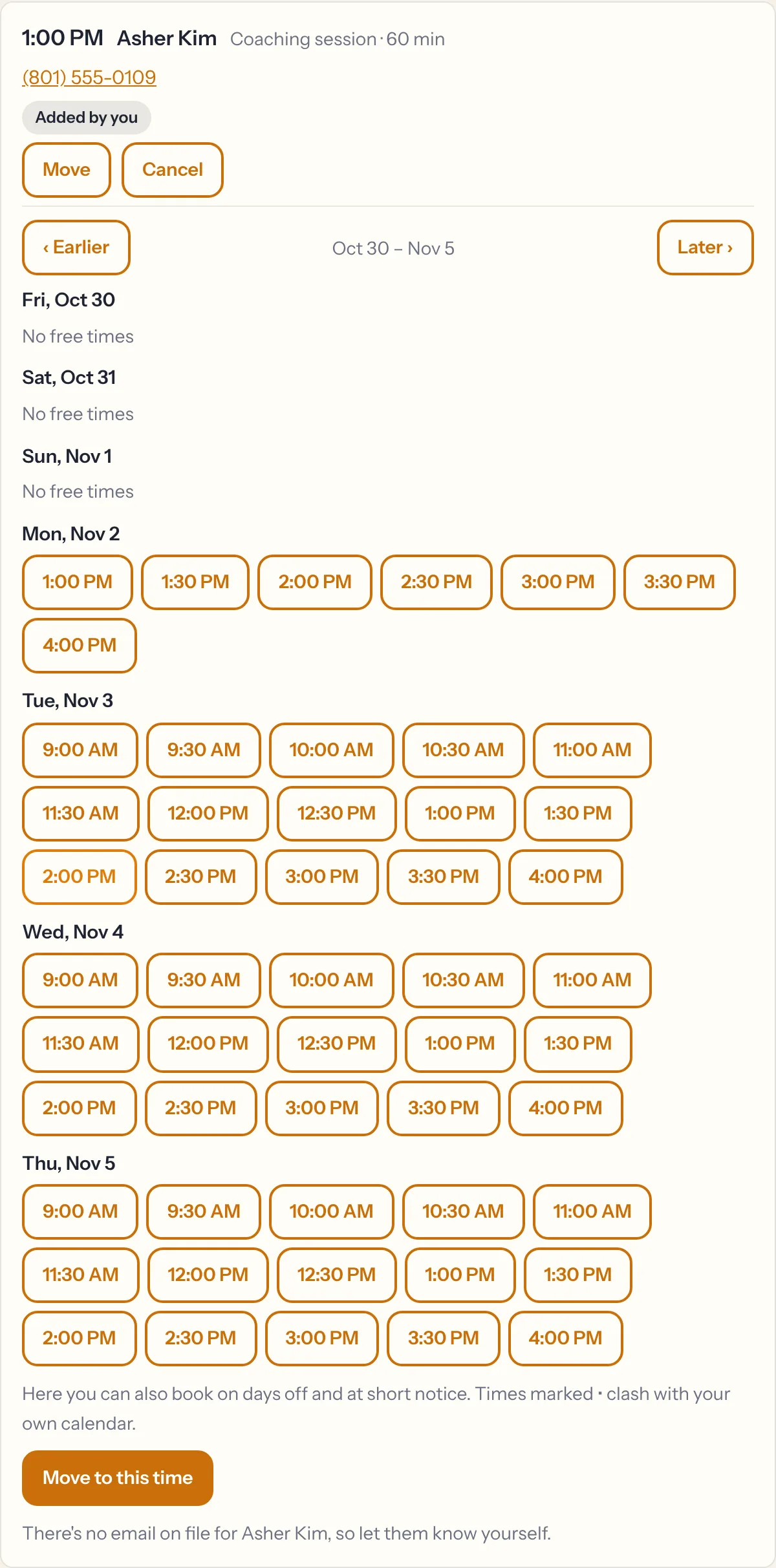
- Move picks a new time from your calendar, and the customer gets an email with the change.
- Cancel frees the time and emails the customer an apology with a link to rebook.
- Mark no-show appears once the time has passed.
- Days off: add a date and nobody can book it online. This saves right away, with no Publish needed.
- Export CSV gives you every booking, with a column for each question you ask.
You get an email for every new, moved or canceled booking. On days with bookings, a short Today email at 7am lists who's coming.
Your Google Calendar
No Google sign-in needed. It works in both directions:
- Bookings go onto your calendar. Every booking email to you carries a calendar invitation, and Gmail adds it to Google Calendar by itself. Moves and cancels update it. Apple and Outlook calendars take the invitations the same way.
- Your calendar blocks times. Paste your calendar's private address in Booking setup → Connect your calendar, and anything on it (a dentist visit, school pickup) hides those times from your booking page.
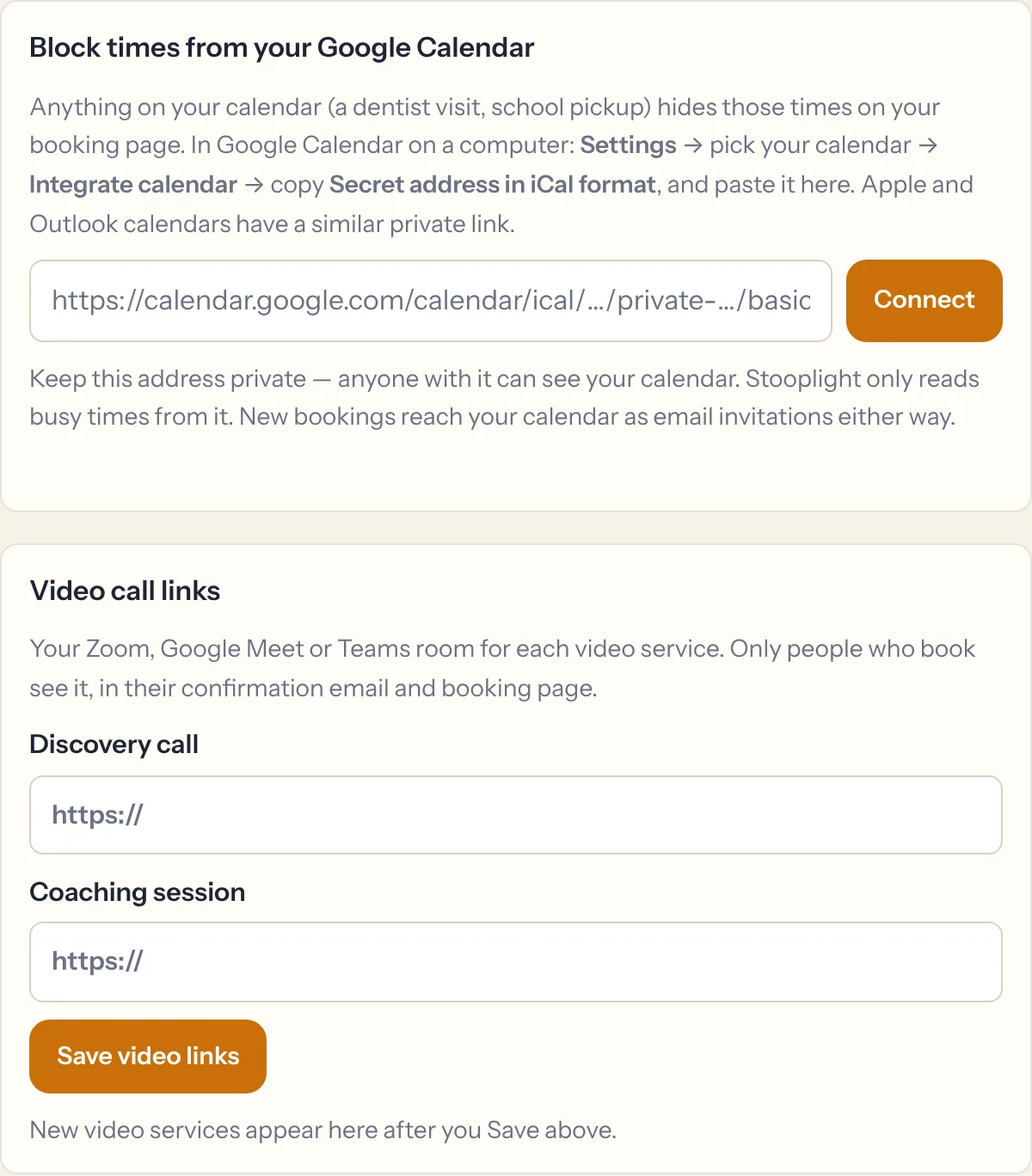
- Open Google Calendar on a computer (the phone app doesn't show this).
- Go to Settings, then click your calendar's name on the left.
- Scroll to Integrate calendar and copy Secret address in iCal format.
- Paste it into Booking setup → Connect your calendar and tap Connect. Stooplight reads it once to make sure it works.
Keep that address private: anyone with it can see your calendar. Stooplight only reads busy times from it. Events you've marked as Free in Google don't block anything.
Video calls: for each video service, paste your Zoom, Google Meet or Teams link under Video call links. Only people who book see it, in their confirmation and on their booking page.
Using your own scheduler instead
Already happy with Cal.com, Calendly or Square Appointments? In Booking setup, choose My own booking link and put the link in Words. Your Book now buttons then open that instead. This works on every plan.